Master Your RSS Feed: How to Truncate Posts & Optimize RSS to Email Campaigns
Have you ever encountered a beautifully concise RSS feed or email campaign that offered just enough of a glimpse to pique your interest, compelling you to click through to the full article? This strategic approach is known as truncating RSS feed posts, and it’s a powerful tool for bloggers, content creators, and businesses alike. If you’ve ever wondered how to achieve this polished look for your own content, whether it’s in Feedburner, Bloglovin’, or your Mailchimp RSS-to-email campaigns, you’ve come to the right place.
For a long time, the question of “how to get my feed posts to look like yours – short, sweet, and with an image” was a frequent query among my fellow bloggers. After a bit of research and collaboration, I uncovered the simple yet effective methods. Now, it’s time to share that knowledge. This comprehensive guide will walk you through the essential steps to set up a truncated RSS feed, complete with images, ensuring a superior user experience and driving more traffic directly to your website. Say goodbye to sprawling, full-text feeds and hello to a more professional, engaging content distribution strategy.
Understanding RSS Feeds and the Power of Truncation
Before diving into the “how-to,” let’s clarify what an RSS feed is and why truncation is so beneficial. RSS (Really Simple Syndication or Rich Site Summary) is a web feed format used to publish frequently updated works—such as blog entries, news headlines, audio, and video—in a standardized format. Subscribers can then read this content using an “RSS reader” or have it delivered directly to their inbox via services like Mailchimp.
What Exactly is Truncating an RSS Feed?
Truncating an RSS feed means displaying only a summary or a snippet of your full post content, rather than the entire article. Typically, this summary includes the post’s title, a featured image, the first few sentences of your content, and a prominent “Read More” link. This link then directs the reader back to your original article on your website.
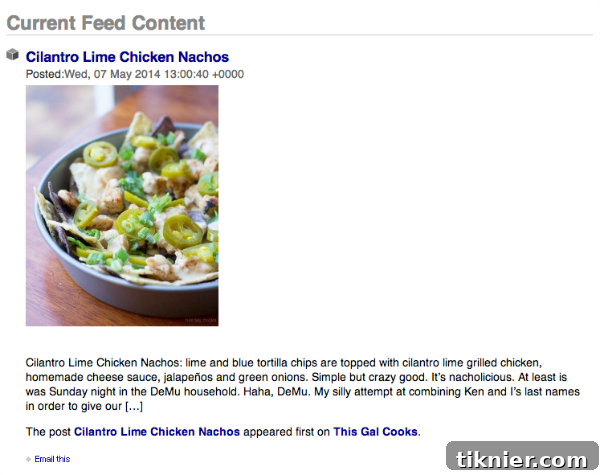
The image above clearly illustrates a truncated post within an RSS feed through Feedburner. Notice how only a concise portion of the content is visible, gently inviting the user to click further. This isn’t just about aesthetics; it’s about strategic content delivery.
Why Truncating Your RSS Feed is Essential for Content Creators
There are several compelling reasons why you should consider truncating your RSS feed. These benefits extend beyond mere appearance, impacting your website’s traffic, content protection, and overall user engagement.
1. Deterring Content Scrapers and Protecting Your Work
One of the most significant advantages of truncating your RSS feed is its effectiveness in deterring content scrapers. Content scrapers are automated bots or individuals who steal your meticulously crafted articles and republish them on their own websites, often without attribution. When you provide your entire article in an RSS feed, you make it incredibly easy for these scrapers to automatically siphon off your full content. By offering only a summary, you create a barrier. While determined scrapers might still visit your site, truncation significantly reduces the ease of automated theft directly from your feed or RSS-driven email campaigns. Protecting your content safeguards your SEO rankings and ensures your original work remains authoritative.
2. Driving More Targeted Traffic to Your Website
The primary goal for many content creators is to get readers onto their website. A truncated RSS feed is a highly effective strategy for achieving this. By presenting an enticing summary and requiring a click to “Read More,” you leverage the power of curiosity. If your summary hooks the reader, they are much more likely to visit your site to consume the full article. This direct traffic is invaluable:
- Increased Page Views: More clicks from your feed mean more page views on your site.
- Lower Bounce Rate: Readers who click through from a summary are often more engaged and less likely to immediately leave your site, potentially exploring other content.
- Higher Engagement: Once on your site, readers are exposed to your full branding, internal links, calls to action, and other monetization strategies (like ads or product placements).
3. Enhancing the User Experience for Subscribers
Consider the experience of your subscribers. A feed filled with dozens of full-length articles can be overwhelming and time-consuming to sift through. Truncated posts offer a cleaner, more digestible experience:
- Quicker Scanning: Subscribers can rapidly scan summaries to identify content most relevant to them.
- Less Clutter: A condensed feed looks more organized and professional.
- Focused Reading: Readers can choose to deep-dive into articles they’re truly interested in, rather than feeling obligated to scroll through endless text in their feed reader.
This improved user experience can lead to higher subscriber retention and satisfaction.
Setting Up Truncated RSS Feeds: A Step-by-Step Guide for WordPress
Now that you understand the “why,” let’s get into the “how.” This guide assumes you are using WordPress for your website, as it offers straightforward solutions for feed truncation.
Prerequisites:
- An active WordPress website.
- Administrator access to your WordPress dashboard.
- Familiarity with installing and activating WordPress plugins.
Here’s how to set up truncated posts for your RSS feed with images:
Step 1: Install the RSS Image Feed Plugin
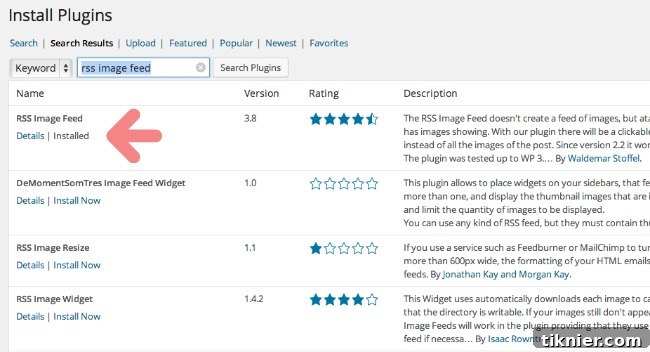
WordPress’s default summary setting for RSS feeds often doesn’t include images, which can make your truncated posts less engaging. To overcome this, you’ll need a specialized plugin. There are several “RSS Image Feed” or similar plugins available in the WordPress plugin repository. When searching, look for plugins with good reviews, recent updates, and compatibility with your WordPress version. A popular and reliable choice ensures proper functionality.
- Navigate to your WordPress Dashboard.
- Go to Plugins > Add New.
- In the search bar, type “RSS Image Feed” (or similar keywords like “RSS feed images,” “excerpt with image”).
- Review the options. Choose a reputable plugin, click Install Now, and then Activate the plugin.
Step 2: Configure Your Plugin Settings
Once activated, you’ll need to configure the plugin to your desired specifications. These settings typically control the size of the image displayed and the length of the text excerpt.
- From your WordPress Dashboard, go to Plugins > Installed Plugins. Find your activated RSS Image Feed plugin and click on its “Settings” link, or navigate through the general “Settings” menu if the plugin integrates there (e.g., Dashboard/Settings/RSS Image Feed).
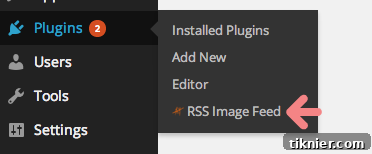
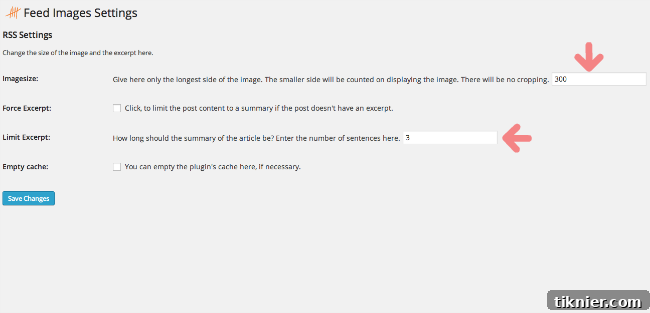
- Within the plugin settings, you’ll find options for “Image Size” and “Limit Excerpt” (or similar phrasing like “number of sentences”).
- Image Size: This setting determines the dimensions of the featured image that will appear in your truncated feed. A common recommendation is around 300-600 pixels in width for good visibility without being overly large. For example, setting it to 300 pixels (as pictured in the original instruction) is often a good balance.
- Limit Excerpt: This controls how many sentences or words of your post will be included in the summary. Three to five sentences is often ideal – enough to give context, but not so much that it gives away the whole story. The goal is to entice, not satisfy.
- After making your selections, be sure to click Save Changes.
Step 3: Adjust WordPress Reading Settings
This is a crucial step that tells WordPress to output summaries instead of full content in your main RSS feed.
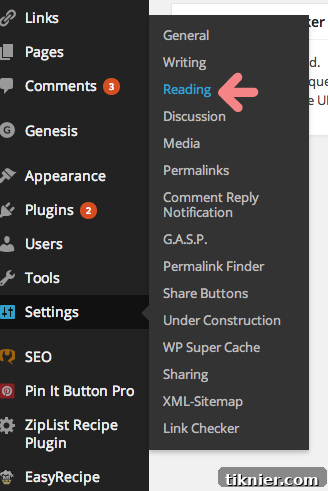
- From your WordPress Dashboard, navigate to Settings > Reading.
- Locate the option that says “For each article in a feed, show:”.
- Change this setting from “Full Text” to Summary.
- Click Save Changes.
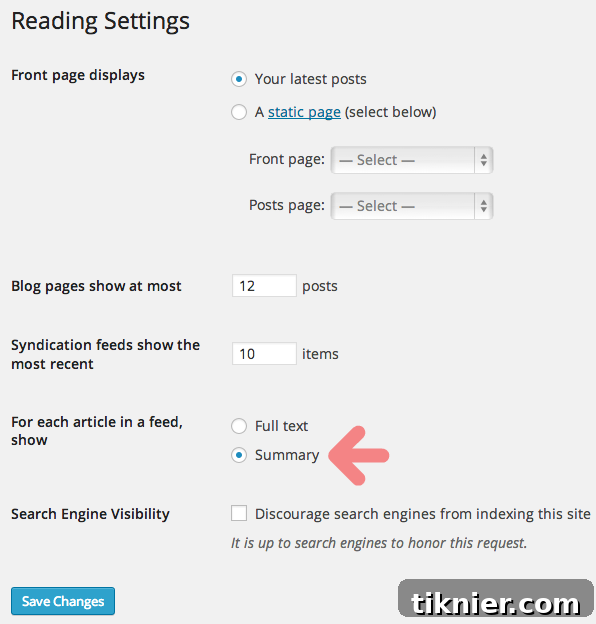
That’s it for the core setup! This combination of an RSS image plugin and the WordPress reading settings will ensure your RSS feeds display truncated posts with images.
Step 4: Test Your Truncated Feed
After implementing these changes, it’s absolutely vital to test your RSS feed to ensure everything is working as expected. This will confirm that your posts are indeed truncated and that images are appearing correctly.
- Check your Feedburner feed: If you use Feedburner, visit your Feedburner URL to see the updated feed.
- Check Bloglovin’ or other feed readers: If you have active subscriptions or accounts on other platforms, check how your feed appears there.
- Send a test RSS-to-Email Campaign: For Mailchimp or similar services, create and send a test campaign to yourself to see the truncated format in an email.
- Verify “Read More” links: Ensure the links embedded in the summaries correctly direct to the full article on your website.
Look for the featured image, the defined number of sentences, and the “Read More” prompt. If you don’t see the changes immediately, clear any caching plugins you might have on your WordPress site and wait a few minutes, as feed readers can sometimes take a little while to refresh.
Optimizing RSS to Email Campaigns (Mailchimp and Beyond)
The beauty of truncating your main RSS feed is that these settings seamlessly carry over to your RSS-driven email campaigns, particularly popular with platforms like Mailchimp. When you set up an RSS-to-Email campaign in Mailchimp (or ConvertKit, AWeber, etc.), it pulls content directly from your site’s RSS feed. By truncating your feed, your email subscribers will receive emails that feature:
- Clean, Concise Layouts: Emails will be shorter and easier to digest, reducing the risk of overwhelming subscribers.
- Prominent Images: Thanks to your plugin settings, a compelling image will accompany each post summary, making the email more visually appealing.
- Higher Click-Through Rates (CTR): Just like with feed readers, an enticing summary in an email encourages subscribers to click through to your website for the full story, boosting your CTR.
- Consistent Brand Experience: Your email content will match the professional, streamlined experience of your direct RSS feed.
This unified approach ensures that no matter where your audience encounters your content – be it a feed reader or an email inbox – they receive a consistent, high-quality, and strategically optimized summary experience.
Troubleshooting Common Truncation Issues
While the process is generally straightforward, you might encounter a few hiccups. Here are some common issues and their solutions:
- Feed Not Truncating: Double-check that you’ve set “For each article in a feed, show:” to “Summary” in Settings > Reading. Also, ensure your RSS Image Feed plugin is active.
- Images Not Appearing: Verify that your RSS Image Feed plugin is correctly installed and configured. Check its specific settings for image display. Sometimes, theme conflicts can prevent images from showing; temporarily switching to a default WordPress theme (like Twenty Twenty-Four) can help diagnose if it’s a theme issue.
- Excerpt Length Incorrect: Go back to your RSS Image Feed plugin settings and adjust the “Limit Excerpt” value. Clear any site cache after making changes.
- Changes Not Reflecting Immediately: RSS readers and email services often cache feeds. It might take some time (from a few minutes to a few hours) for the changes to propagate. Clearing your website’s cache (if you use a caching plugin) can help speed up the process.
Advanced Tips for Your RSS Feed Strategy
Once you’ve mastered the basics, consider these advanced tips to further enhance your RSS feed and content distribution:
- Customize “Read More” Text: Some RSS Image Feed plugins allow you to customize the default “Read More” text. Tailoring this text (e.g., “Continue Reading on Our Blog,” “Discover the Full Recipe”) can make it even more engaging.
- Monitor Feed Performance: Utilize analytics tools (like Google Analytics, if set up to track inbound links from feed readers, or Feedburner’s own statistics) to monitor how many clicks your truncated posts are generating. This data can inform future adjustments to your excerpt length or image choices.
- Review Plugin Options: Explore other RSS-related plugins if your current one doesn’t offer the flexibility you need. Some plugins provide more granular control over what’s included or excluded from your feed.
Conclusion
Implementing a truncated RSS feed strategy is a simple yet incredibly effective way to professionalize your content distribution, protect your intellectual property, and significantly boost traffic to your website. By following the straightforward steps outlined in this guide—installing the right plugin, configuring image and excerpt settings, and adjusting WordPress reading preferences—you can transform your RSS feeds into powerful engagement tools.
Whether your audience consumes your content through Feedburner, Bloglovin’, or your beautifully designed Mailchimp email campaigns, a truncated feed ensures a consistent, clean, and compelling experience. Embrace this strategy today and watch as your subscribers eagerly click through to discover the full breadth of your amazing content!